

Woodward 723PLUS Digital Control
723PLUS Digital Control
9906-619. 9906-620. 9906-700
This manual describes the Woodward 723PLUS Digital Control hardware,
9906-619 (low voltage), 9906-620 (high voltage), and 9906-700 (modified
actuator filtering, low voltage).
Application
The 723PLUS Digital Control can be programmed to suit applications requiring
two magnetic pickups (MPUs) or proximity switches (e.g. for torsional filtering) as
the hardware includes two speed inputs. It also includes four analog inputs, three
analog outputs, eight discrete inputs and three discrete outputs, all of which can
be programmed to satisfy the application. The control can be used in load
sharing systems as it contains circuitry and connections to support this.
The two LON®* channels can be used to support Woodward LonTalk®* or
LinkNet® input/output nodes control functions.
*—LON and LonTalk are trademarks of Echelon Corporation.
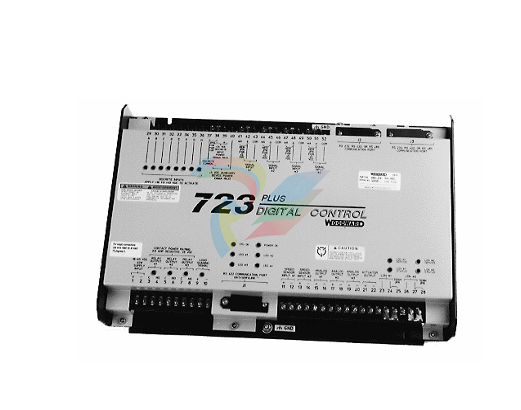
The 723PLUS control (Figure 1-1) consists of a single printed circuit board in a
sheet-metal chassis. Connections are via three terminal strips and three 9-pin
subminiature D connectors.
Control Options
The 723PLUS control requires the following power supply input voltages, with 40
watts as the nominal power consumption at rated voltage:
18–40 Vdc (24 or 32 Vdc nominal)
90–150 Vdc (125 Vdc nominal)
Discrete input voltages provide on/off command signals to the electronic control.
Each discrete input requires 10 mA at its 24 Vdc nominal voltage rating (for 24
volt switching logic).
Other control options are:
proximity switch input for speed signal frequencies below 100 Hz (see
NOTE)
0–1 mA for meter drivers
tandem actuator outputs
dual actuator outputs (0–200 mA)
The control may be used with either proximity switches (see NOTE) or magnetic
pickups. The minimum frequency for steady state speed control is 30 Hz. For
more information see Control Specifications (inside back cover).
723PLUS Digital Control Accessories
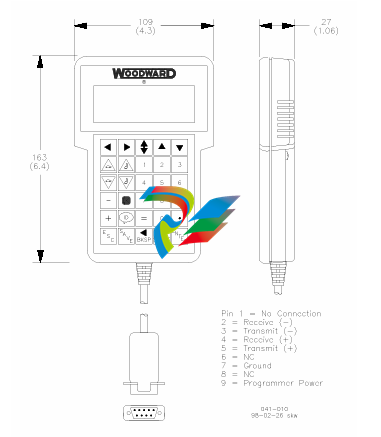
Hand Held Programmer (Figure 1-2), part number 9907-205. can be used
for adjusting the 723PLUS control. It plugs into serial port J1 of the control.
This part is EU Directive compliant.
SPM-A Synchronizer, for synchronizing the generator phase to that of the
power bus. The synchronizer generates a close generator breaker signal to
parallel the generator with the power bus.
Power Output Sensor, for load sharing or droop operation in mechanical
load applications.
Real Power Sensor, for load sharing or droop-parallel generator
applications.
Digital Synchronizer and Load Control (DSLC™) for generator load
management.
Rack Position Sensor, for mechanical load sharing.
Load Pulse Unit, for improved system load transient response.
LinkNet nodes for additional input/output control functions.
Scope
This chapter contains general installation instructions for the 723PLUS control.
Power requirements, environmental precautions, and location considerations are
included to help you determine the best location for the control. Additional
information includes unpacking instructions, electrical connections, and
installation checkout procedures.
Unpacking
Before handling the control, read page v, Electrostatic Discharge Awareness. Be
careful when unpacking the electronic control. Check the control for signs of
damage such as bent panels, scratches, and loose or broken parts. If any
damage is found, immediately notify the shipper.
Power Requirements
The high-voltage versions of the 723PLUS Digital Speed Control require a
voltage source of 90 to 150 Vdc. The low-voltage versions require a voltage
source of 18 to 40 Vdc
Location Considerations
Consider these requirements when selecting the mounting location:
adequate ventilation for cooling
space for servicing and repair
protection from direct exposure to water or to a condensation-prone
environment
protection from high-voltage or high-current devices, or devices which
produce electromagnetic interference in excess of levels defined in
EN50082–2
avoidance of vibration
selection of a location that will provide an operating temperature range of
40 to +70 °C (–40 to +158 °F)
Specific Marine Installation Requirements
Marine Type approval requirements change over time. In recent years, there has
been at least the addition of a stricter emission limit. A 156–165 MHz band notch
has been added and referred to here as the “Marine Notch”. To address the
Marine Notch, additional installation limitations are required for new installations
under the updated Marine Type approvals.
All wiring, except for the last 12 inches (305 mm) adjacent to the control
connection terminals must be inside a metal conduit, metal cable armoring,
enclosed metal cable way, or similar metal acting as a secondary shield. The
metal acting as the secondary shield must be grounded to the same reference
ground as the control chassis. In some cases, the chassis reference ground is
also referred to as Protective Earth (PE). All wiring must also follow the wiring
and shielding requirements given in the specific, separate software manual.
The control must be mounted on a metal mounting plate that is grounded to the
same reference ground potential as the control’s chassis.
Alternatively, if the installation is limited to areas of the ship where at least 6 dB
attenuation of the RF signals from the control can be guaranteed, no additional
special measures are needed. The signals in the 156–165 MHz range must be
attenuated by 6 dB before they reach the receiver antenna or receiver
(interference point), and the control must be >3 m away from the antenna or
receiver. This is a specific installation dependency, and some examples may
include:
A grounded, metal, IP rated cabinet with all cabling staying inside it for more
than 2 m length, with any shield terminations at the cabinet exit/entry point
and all unshielded cable routed directly against the metal cabinet.
A below-deck metal engine room where none of the cabling, including power,
leaves the engine room.
If using a specific installation location or method as a means to meet the Marine
Notch requirements, instead of a secondary metal shield for cabling, consult the
ship builder. Acceptability of the installation for obtaining 6 dB of RF attenuation
in the 156–165 MHz range must be provided by the ship builder. Woodward will
not know the ship installation application or requirements to provide guidance.
Internal Jumpers
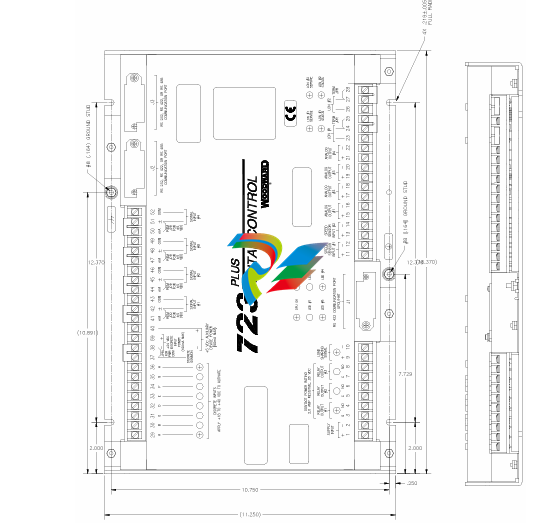
The 723PLUS control has ten, two-position internal jumpers (JPR1 through
JPR20) located on the top of the printed circuit board. If it is necessary to change
any jumper to match your control requirements, and this suits the nature of the
software, be sure to read page v, Electrostatic Discharge Awareness.
Remove power and all inputs. Wait 45 seconds, then remove cover. With your
fingers or a small pair of tweezers, carefully remove the appropriate jumper and
replace it securely over the proper two connectors (see Figure 2-1).
Notes for Figure 2-2
Shielded wires are twisted pairs, with shield grounded at one end only. When
mounting control to bulkhead, use the grounding stud and hardware supplied with
the chassis to ensure proper grounding.
Shields must not be grounded at any external point unless otherwise noted.
All shields must be carried continuously through all terminal blocks and must not be
tied to other shields except at the common ground point. Tie all shields together at
ground stud located near connector J1.
Remove jumper for voltage input.
Remove jumper if using external discrete input power.
Discrete inputs are isolated from other circuits and intended to be powered by
TB1-39 (+24) leaving the jumper in place. Input current is nominally 10 mA input into
2210 Ω.
7. Unless otherwise specified:
A. Relays shown de-energized
B. Relays energize for function
C. Relay contact ratings for minimum 100 000 operations:
Resistive— 2.0 A at 28 Vdc
0.1 A at 115 Vac 50 to 400 Hz
Inductive— 0.75 A at 28 Vdc 0.2 Henry
0.1 A at 28 Vdc lamp
Analog output signals to other systems must be isolated from ground either by
design or employment of isolation amplifiers.
Analog input signals to other systems must be isolated from ground either by design
or employment of isolation amplifiers.
10. Factory set for MPU input.
11. Factory set for 20–160 mA output.
12. Factory set for 4–20 mA output.
13. Internal power supply provides dc isolation between the power source and all other
inputs and outputs.
14. Communication port J1 can be used with the Woodward ST2000 Hand Held
Programmer or PC Interface using Watch Window/Servlink software.
15. Communication port J2 or J3 can be configured as an RS-232. RS-422. or RS-485
serial interface. Port configuration can be done in the application software only. For
the pin assignment of J2 and J3. see later in this chapter.
16. This analog output may connect to a metering/controlling device. The shield should
be continuous between all connected devices with a single shield termination point to
ground.
17. Use twisted pair shielded wires only.
18. Remove jumper if used with the gas engine I/O node.
Termination is accomplished using a three-resistor voltage divider between a
positive voltage and ground. The impedance of the resistor network should be
equal to the characteristic impedance of the cable. This is usually about 100 to
120 ohms. The purpose is to maintain a voltage level between the two differential
lines so that the receiver will be in a stable condition. The differential voltage can
range between 0.2 and 6 volts; but the maximum voltage between either receiver
input and circuit ground must be less than 10 volts. There is one termination
resistor network for each port located on the 723PLUS board. Connection to this
resistor network is made through the 9-pin connectors on pins 6 and 9. See
Figures 2-5 through 2-8 for termination and cable connection examples.
Due to the variety of installations, plus system and component tolerances, the
723PLUS control must be tuned to each system for optimum performance.
This chapter contains information on how to enter control set points through the
control's menu system using the Hand Held Programmer. If you have access to
the Watch Window software tool and Servlink software, you can set up and tune
the 723PLUS control from a PC (personal computer) using the instructions in
Chapter 5 of this manual.
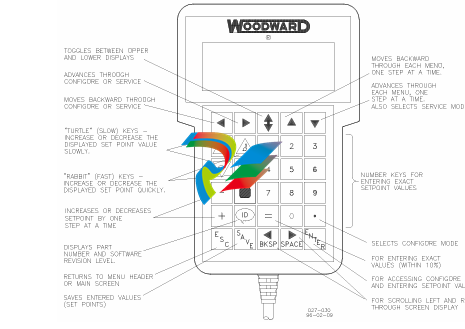
Hand Held Programmer and Menus
The Hand Held Programmer is a hand-held computer terminal that gets its power
from the 723PLUS control. The terminal connects to the RS-422 communication
serial port on the control (terminal J1). To connect the terminal, slightly loosen
the right-hand screw in the cover over J1 and rotate the cover clockwise to
expose the 9-pin connector. Then firmly seat the connector on the terminal into
J1.
The programmer does a power-up self-test whenever it is plugged into the
control. When the self-test is complete, the screen will display two lines of
information. This is information relating to the application. Pressing the ID key will
change the display to show the part number of the software and version letter.
The programmer screen is a four-line, backlit LCD display. The display permits
you to look at two separate functions or menu items at the same time. Use the
UP/DOWN ARROW key to toggle between the two displayed items. The BKSP
and SPACE keys will scroll through the display to show the remainder of a
prompt if it is longer than the display screen's 18 characters.
The 723PLUS has two sets of menus—the Service menus and the Configure
menus. The Service menus allow easy access and tuning while the engine is
running. The Configure menus may be entered only if the I/O is shutdown (hence
the engine stopped).
Configure Menus
To access the Configure menus, the engine must be shut down. Press the key.
The display will show, “To select configure, press enter”. Press the ENTER key
and the display will show, “To shutdown I/O, press enter”. Press the ENTER key
and this will allow you into the Configure menus.
To move between the menus use the LEFT ARROW and RIGHT ARROW keys.
To move through the set points within a menu, use the UP ARROW and DOWN
ARROW keys. Once within a menu, to return to the menu header, press the ESC
key.
To leave the Configure menus press the ESC key. The set points will be
automatically saved when leaving Configure.
Service Menus
To access the Service menus press the DOWN ARROW key. To move between
menus, and to move through set points within menus follow the instructions as
for the Configure menus. Also to return to return to the menu header, or to leave
Service, follow the Configure instructions.
Adjusting Set Points
To adjust a set point, use the TURTLE UP or the RABBIT UP keys to increase
the value, and the TURTLE or RABBIT DOWN keys to decrease the value. The
RABBIT UP and RABBIT DOWN keys will make the rate of change faster than
the TURTLE UP and TURTLE DOWN keys. This is useful during initial setup
where a value may need to be changed significantly. Where necessary, to select
TRUE, use either the TURTLE UP or the RABBIT UP keys, and to select FALSE,
use the TURTLE DOWN or RABBIT DOWN keys.
Use the + or – keys to change integer values in the application software.
To obtain an exact value, press the = key. Key in the required figure and press
ENTER.
view the variables for your 723PLUS control on a PC (personal computer). These
instructions are meant to be introductory only. Full on-line help is available in
each application. It is assumed that you already have Servlink and Watch
Window installed. The default installation location can be found by clicking the
START icon (Microsoft Windows 95 or later) on the main menu bar and then
clicking the PROGRAMS menu item. Look for an icon called WOODWARD
WATCH WINDOW.
Make sure that all other programs that may access your computer
communications port are shut down.
Get the right cable to talk from your PC to the control (5416-614 will work for
J2 and J3. 5416-870 for J1).
Start the Servlink server and open a new file. Select the proper COM port for
your PC, verify that POINT TO POINT communications mode is selected,
and verify that the baud rate matches the baud rate of the 723PLUS. The
default baud rate is 19 200. See the on-line help file if you have been
changing the port settings of your control.
Select OK. If everything is working right, you should see an animated picture
of a string of “1”s and “0”s flying from the control to the PC on your screen.
You now have a network definition file whose default name is NET1. You
should save this file as “your filename.NET” (use FILE/SAVE AS). Link this
name to your control part number, as it will work only with that application.
For instance, if the upper level control number is 9907-031. you could save
the file as 9907031.NET. DO NOT DISCONNECT THE SERVER.
In the Servlink window you will now have another dialog window titled “your
filename.net”. In this window you will see a ballhead icon and a control
identifier name. Unless you have given the control a serial number (or name)
with the SLSN.EXE program, this name will display as “”.
Start the Watch Window application. When Watch Window executes, you will
have a screen displaying three windows entitled Watch Window, Explorer,
and Inspector.
The Explorer window will have two groups displayed, SERVICE and
CONFIGURE. Double clicking on either of these will expand them to show
groups of values. Explorer is used only to locate a tunable or monitor value.
In order to change a value or monitor a value, you must drag and drop a
value from the Explorer window into the Inspector window.
Once a value is displayed in the Inspector, you can see several blocks of
information. The most important blocks for a tunable value are the FIELD and
VALUE blocks. The FIELD block is used to identify a particular value, and the
VALUE block displays the current value of a variable. There are two types of
values available in Watch Window. One is a monitor value, which is marked
in the INSPECTOR window with a pair of glasses. This means it may only be
looked at. The other value is a read/write value, which is marked with a
pencil. The read/write type may be modified using the up and down arrows in
the value block.
Downloading to the 723PLUS
NOTE that this is the only way to download to a 723PLUS, and it will not work on
a regular 723.
Make sure that all other programs that may access your computer’s
communication port are shut down.
Get the right cable to talk from your PC to the control J1 port (5416-870).
Start the Servlink server and open a new file. From the dialog window, select
the proper COM port for your PC, select POINT TO POINT communications
mode, and set the baud rate to 19200.
Select OK. If everything is working right, you should see an animated picture
of a string of “1”s and “0”s flying from the control to the PC on your screen.
You now have a network definition file whose default name is NET1. You
should save this file. Link this name to your control part number as it will only
work with that application. For instance if the upper level control number is
9907-031. you could save the file as 9907031.NET. DO NOT DISCONNECT
THE SERVER.
In the Servlink window you will now have another dialog window titled “your
filename.net”. In this window you will see a ballhead icon and a control
identifier name. Unless you have given the control a serial number (or name)
with the SLSN.EXE program, this name will display as “”.
Start the Watch Window program. Under the title bar in the Explorer window
you will find a tab with your network file and the control ID displayed. Right
click this tab to display the pop-up menu, and select LOAD APPLICATION.
This will close the Inspector window and open a new window where you will
enter the name of the file you want to download. Once the filename is
correct, click on the OPEN button. A Warning screen will ask you to make
sure the engine is shut down before downloading. Downloading will proceed
automatically once your accept the message to shut down the engine.
Transferring Tunable Values Between 723PLUS
Controls
Note that this will not work with regular 723 controls.
Make sure that all other programs that may access your computer’s
communication port are shut down.
Get the right cable to talk from your PC to the control (5416-870 for J1. 5415-
614 for J2 or J3).
Start the Servlink server and open a new file. From the dialog window, select
the proper COM port for your PC, select POINT TO POINT communications
mode, and set the baud rate to 19200.
Select OK. If everything is working right, you should see an animated picture
of a string of “1”s and “0”s flying from the control to the PC on your screen.
You now have a network definition file whose default name is NET1. You
should save this file. Link this name to your control part number as it will only
work with that application. For instance if the upper level control number is
9907-031. you could save the file as 9907031.NET. DO NOT DISCONNECT
THE SERVER.
In the Servlink window you will now have another dialog window titled “your
filename.net”. In this window you will see a ballhead icon and a control
identifier name. Unless you have given the control a serial number (or name)
with the SLSN.EXE program, this name will display as “”.
Start the Watch Window program. Under the title bar in the Explorer window
you will find a tab with your network file and the control id displayed. Right
click this tab to display the pop-up menu, and select CONFIGURATION. If
you want to take the configuration from a control, select SAVE TO FILE. If
you want to download a new configuration to a control with an existing
application, then select LOAD FROM FILE.
If you select SAVE TO FILE, you will have to provide the name of a file
where you want to save the configuration. If your control has a part number
of 9907-031 then you might want to call this file 9907031.cfg. Make the name
meaningful so you can find it easily the next time you need it.
If you select LOAD FROM FILE you will get a confirmation warning telling
you that the unit will be shut down. If you answer yes then you will be asked
for the name of the configuration file that you want to download
-
CTI 2512 75-Watt AC/DC Power Supply
-
CTI 2510 125 VDC Power Supply
-
CTI 2500-SSB Single Slot Blank Front Panel
-
CTI 2500-R11-A Eleven-Slot Redundant Base
-
CTI 2500P-R16 Sixteen-Slot Base with High-Speed Channel
-
CTI 2500P-R8 Eight-Slot Base with High-Speed Channel
-
CTI 2500P-R4 Four-Slot Base with High-Speed Channel
-
CTI 2541 Redundant Processor Manager Module
-
CTI 2577 Profibus DP Slave Adapter
-
CTI 2573-MOD Serial Interface Adapter with MODBUS
-
CTI 2572-AF Fast Ethernet TCP/IP Adapter with Optical Fiber Connection
-
CTI 2572-A Fast Ethernet TCP/IP Adapter
-
CTI 2572 Ethernet TCP/IP Adapter
-
CTI 2572-B Fast Ethernet TCP/IP Adapter
-
CTI 2576 DeviceNet™ Scanner Module (MATURE)
-
CTI 2500P-ECC1 Ethernet Communications Coprocessor
-
CTI 2500P-JACP Janus Application Coprocessor
-
CTI 2500P-ACP1 Application Coprocessor (MATURE - replaced by 2500P-JACP)
-
CTI 2500P-J450 Janus PAC with 2MB Project Memory
-
CTI 2500-C400 CPU with 3072K User Memory
-
CTI 2500-C300 CPU with 512K User Memory
-
CTI 2500-C200 CPU with 256K User Memory
-
CTI 2500-C100 CPU with 128K User Memory
-
CTI 2500P-J750 Janus PAC with 3MB Project Memory
-
Shinkawa WHF3006M Displacement Converter
-
Shinkawa JBP-220 (P-24-94A / P-24-94B) Circuit Board Module
-
SHINKAWA WKN-142K5 2-WIRE VIBRATION TRANSDUCER
-
Shinkawa FRP-321 (P-26-54A / P-26-54B) Circuit Board Module
-
Shinkawa IOP-160 (P-25-72A / P-25-72B) Circuit Board Module
-
Shinkawa PK-147B-1 / PK-147A-1 Circuit Board Module
-
Shinkawa CPP-91A Circuit Board Module
-
Shinkawa FRP-177 PCB Module
-
Shinkawa CPP-127 (P-26-74A / P-26-74B) Circuit Board Module
-
Shinkawa FRP-227 (P-24-86A / P-24-86B) Circuit Board Module
-
Shinkawa MDP-104 (P-25-83A / P-25-83B) Circuit Board Controller
-
Shinkawa VK-143P2 High-precision eddy current sensor driver/signal conditioner
-
Shinkawa FRP-226 (P-24-86A / P-24-86B) Circuit Board Module
-
Shinkawa CPP-107A P-22-99A P-22-99B Circuit Board Module
-
SHINKAWA VW-202AL-8 Axial Displacement Sensor
-
Shinkawa VL-202A08L-1A42 Vibration Sensor Transducer Probe
-
Shinkawa FRP-209A & FRP-206 Wire Bonder Circuit Board Module
-
Shinkawa MGP-72 MGP72 P-26-50A P-26-50B Circuit Board Module
-
Shinkawa FRP-249 P-25-1A P-25-1B Circuit Board Module
-
Shinkawa FRP-320 P-26-54A P-26-54B Circuit Board Module
-
Shinkawa FRP-282 P-24-35A P-24-35B Circuit Board Module
-
Shinkawa FRP-338 P-26-54A P-26-54B Circuit Board Module
-
GE IS200AEPBH1B Pitch-Charger Control PCB Board
-
GE IS200EDEXG1ADA EX2100 SCR Trigger Control Board
-
GE 151X1207CK01SA01 IS200EDEXG1A EX2100 SCR
-
GE 151X1233DD02SA02 IS200AEPBH1B - Variant for pitch control charger assembly
-
GE 151X1233DB01SA01 IS200AEPBH1B - 10kW Wind Power Converter
-
GE 151X1233DB01SA01 IS200AEPBH1B - 10kW Wind Power Converter
-
GE 151X1233DB01SA01R | IS200AEPBH1B 10KW Converter
-
GE 151X1233DD01SA02 Pitch Battery Charger (109W6931P001)
-
GE 151X1233DD01SA02 Pitch Battery Charger Assy IS200AEPBH1B
-
GE 151X1233DB02SA02 Rev A IS200AEPBH1B Wind Turbine Converter
-
GE 151X1207CK02SA02 SCR 4400 V 1850 A IS200EDEXG1ADA General Electric EX2100
-
Triconex 3723X 32-Channel TMR Analog Input Module with HART
-
SHINKAWA VM-21G SIGNAL CONDITIONER SOCKET
-
SHINKAWA VM-21R REVOLUTION SIGNAL CONDITIONER
-
SHINKAWA VM-21T DISPLACEMENT INPUT THRUST SIGNAL CONDITIONER
-
SHINKAWA VM-21D 6-WIRE LVDT SIGNAL CONDITIONER
-
SHINKAWA VM-21P 3-WIRE LVDT SIGNAL CONDITIONER
-
SHINKAWA VM-21A VIBRATION SIGNAL CONDITIONER
-
SHINKAWA VM-21K DISPLACEMENT INPUT VIBRATION SIGNAL CONDITIONER
-
SHINKAWA VM-25S01 CONDITION MONITORING SYSTEM
-
SHINKAWA VM-25 CONDITION MONITORING SYSTEM
-
SHINKAWA VM-772B DEVICE CONFIG
-
SHINKAWA VM-771B MCL VIEW
-
SHINKAWA VM-76B INSTRUMENT RACK
-
SHINKAWA VM-75B POWER SUPPLY MODULE
-
SHINKAWA VM-742B NETWORK COMMUNICATION MODULE
-
SHINKAWA VM-741B LOCAL COMMUNICATION & PHASE MARKER MODULE
-
SHINKAWA VM-722B 9-CHANNEL RELAY MODULE
-
SHINKAWA VM-707B AERODERIVATIVE GAS TURBINE MONITOR MODULE
-
SHINKAWA VM-706B ROD DROP MONITOR MODULE
-
SHINKAWA VM-705B 18-CHANNEL TEMPERATURE MONITOR MODULE
-
SHINKAWA VM-704B TEMPERATURE MONITOR MODULE
-
SHINKAWA VM-703B TACHOMETER & ECCENTRICITY MONITOR MODULE
-
SHINKAWA VM-702B ABSOLUTE VIBRATION MONITOR MODULE
-
SHINKAWA VM-701B VIBRATION / DISPLACEMENT MONITOR MODULE
-
SHINKAWA MODEL VM-5X INTERFACE UNIT
-
SHINKAWA MODEL VM-5W2 DUAL POWER SUPPLY INSTRUMENT RACK
-
SHINKAWA MODEL VM-5H4 INSTRUMENT RACK (for VM-5Z5.6.7)
-
SHINKAWA MODEL VM-5G SINGLE UNIT INSTRUMENT RACK
-
SHINKAWA MODEL VM-5Z5,6,7 POWER SUPPLY UNIT
-
SHINKAWA MODEL VM-5Y1,2,3 RELAY MODULE UNIT
-
SHINKAWA MODEL VM-5P3 PHASE MARKER UNIT
-
SHINKAWA MODEL VM-53 DUAL COMMUNICATION UNIT
-
SHINKAWA MODEL VM-52 BOTTOM HOLD MONITOR
-
SHINKAWA MODEL VM-51 ROD DROP MONITOR
-
SHINKAWA MODEL VM-5R TACHOMETER
-
SHINKAWA MODEL VM-5S DUAL TACHOMETER
-
SHINKAWA MODEL VM-5A DUAL VALVE
-
SHINKAWA MODEL VM-5E DUAL CASE
-
SHINKAWA MODEL VM-5L COMPLEMENTARY INPUT
-
SHINKAWA MODEL VM-5N RAMP DIFFERENTIAL
-
SHINKAWA MODEL VM-5D DUAL DIFFERENTIAL
-
SHINKAWA MODEL VM-5T DUAL THRUST MONITOR
-
SHINKAWA MODEL VM-5C ECCENTRICITY MONITOR
-
SHINKAWA MODEL VM-5C ECCENTRICITY MONITOR
-
SHINKAWA MODEL VM-5M DUAL PATH MONITOR
-
SHINKAWA MODEL VM-5B DUAL ACCELERATION MONITOR
-
SHINKAWA MODEL VM-5B DUAL ACCELERATION MONITOR
-
SHINKAWA MODEL VM-5U DUAL SEISMIC MONITOR
-
SHINKAWA MODEL VM-55 VIBRATION MONITOR
-
SHINKAWA VM-742B1-5 VIBRATION MONITORING SYSTEM CARD
-
Shinkawa PSP-17B P-24-64A P-24-64B Circuit Board Module
-
SHINKAWA MGP-67 PCB
-
Shinkawa JBP-278 P-22-48A-1 P-22-48B-1 Circuit Board Module
-
Shinkawa VM-721B 18-CHANNEL RELAY MODULE
-
Shinkawa FRP-337 P-26-54A P-26-54B Circuit Board Module
-
Shinkawa WKN-142K2-2 Vibration Transmitter
-
SHINKAWA VL-202A08L-1012 Rotor Position Monitor Probe Sensor
-
Shinkawa CPP-128 P-26-74A P-26-74B Circuit Board Module
-
Honeywell 51402755-100 PROCESSOR CARD
-
Honeywell 51107595-100 Power
-
HONEYWELL 51304544-100 Control Board
-
HONEYWELL 51109919-100 BOARD
-
HHoneywell 51204160-175 Digital Input Module
-
Honeywell 51304754-150 High Level Analog Input Module
-
HONEYWELL 51304690-100 DIGITAL INPUT CARD
-
Honeywell 51401635-150 COMM CONTROL
-
HONEYWELL 51204174-175 MC-TAOY 52 ANALOG OUTPUT BOARD
-
HONEYWELL 51400596-100
-
HONEYWELL 51401291-100 board card
-
HONEYWELL 51401642-150 I/O LINK MODULE
-
Honeywell LCN‑E Hub Power Supply 38500148‑300

Add: High-tech Software Park, Xiamen City, Fujian Province
Mobile: +86-17750019513(WhatsApp)
Email: yy4291644@gmail.com
Website: https://www.abb-sis.com
.jpg)
.jpg)
.jpg)
.jpg)
.jpg)
.jpg)

-
CTI 2512 75-Watt AC/DC Power Supply
-
CTI 2510 125 VDC Power Supply
-
CTI 2500-SSB Single Slot Blank Front Panel
-
CTI 2500-R11-A Eleven-Slot Redundant Base
-
CTI 2500P-R16 Sixteen-Slot Base with High-Speed Channel
