


- SHINKAWA
- Beckhoff
- CTI
- Basler Electric
- ETEL
- Jaquet
- ADLINK
- SEL
- UNIOP
- Sieger
- Autronica
- SAMSUNG
- Stucke Elektronik
- Moore
- NI
- EMERSON
- IBA
- SST
- LEYBELOD
- SAMSUNG
- METSO
- AMAT
- Phoenix
- LAND
- LAMBDA
- Abaco
- Kongsberg
- ALFA LAVAL
- Pacific Scientific
- Others
- OMRON
- AMAT
- ICS Triplex
- Lam Research
- KUKA
- Hirschmann
- ELAU
- EATON
- Applicom
- Watlow Anafaze
- Meggitt Vibro-meter
- Carrier
- Other
- ROCKWELL
- Rolls-Royce
- SAACKE
- Yokogawa
- B&R
- Reliance Electric
- Seifert
- A-B
- Weimeide Metso
- KEBA
- HIMatrix
- Valmet
- Schneider
- Prosoft
- PEPPERL+FUCHS
- Honeywell
- Woodward
- GE
- GEA Westfalia Separator
- Bently Nevada
- ALSTOM
- Foxboro
- MOTOROLA
- Fanuc
- VMIC
- KOLLMORGEN
- SEW
- Rexroth
- AEROTECH
- TOSHIBA
- TmeIC
- Sumitomo
- SOCAPEL SOCASIN
- SMC
- Stromag
- SIEMENS
- SCHUMACHER
- ABB
- MOOG
- EPRO
- EMERSON
- Triconex
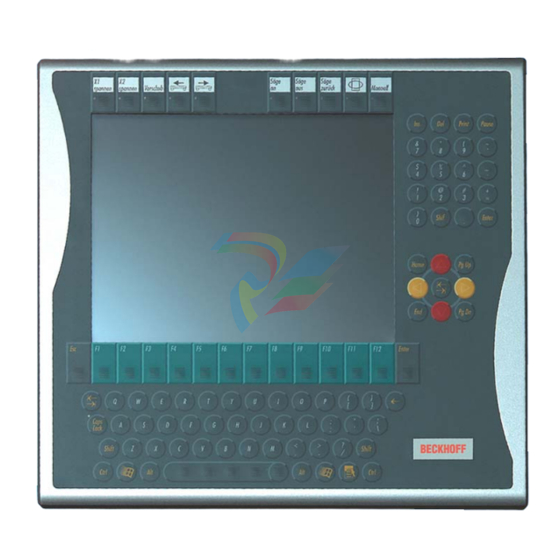
Beckhoff Nail Operating Terminal CP7032-1031-0010
Beckhoff Nail Operating Terminal CP7032-1031-0010
Functional description
Switch on
Switching off
Operation
i Note
Type-dependent number of
The Control Panel does not have its own mains power switch. As soon as
the power supply is switched on the control panel is activated.
Control software, as typically applied in Control Panels, enables the
assignment of different rights to all users. A user who is not entitled to shut
down the software may not switch off the Control Panel as an attempt to
shut it down when the software is running could result in the loss of
software data on the Compact Flash memory card.
If the control panel is shut down while the software is writing a file onto the
Compact Flash memory card, the file will be destroyed. Control software
typically writes something to the CF memory card every few seconds, so
that the probability of causing damage by switching off while the software is
running is very high.
The Control Panel’s membrane keypad may only be actuated by fingertips.
Attempts to actuate it with other objects can easily result in the destruction
of the device. Neither may the membrane keypad be operated with a touch
screen pen.
The touch screen may only be actuated by finger tips or with the touch
screen pen. The operator may wear gloves but there must be no hard
particles such as metal shavings, glass splinters embedded in the glove.
Keyboard codes
Depending on the precise type, the Control Panel can have fewer keys
than those described here.
The cursor is the blinking character that marks the point at which the next
character entered will be displayed. The cursor is also known as the
insertion point. The cursor keys each move the cursor one place in the
associated direction.
The Home key moves the cursor to the beginning of the line, while the End
key moves it to the end of the line.
The Pg Up key scrolls one page back, the Pg Dn key scrolls one page
forward.
The Tab key takes the cursor to the next input field, while Shift and Tab
moves to the previous input field.
The mouse cursor can be moved over the screen with the aid of the touch
screen or of the touch pad (optional). The keys correspond to the left and
right hand keys of a Microsoft mouse.
The Del key deletes the character to the right of the cursor.
The Ins key causes characters to the right of the cursor to be overwritten.
The overwrite mode is cancelled by pressing the key again.
Print-Screen prints a hard copy of a text screen on the printer.
The Pause key stops the computer until another key is pressed (only under
MS-DOS).
Your input is confirmed with the Enter key.
Backspace deletes the character to the left of the cursor.
If the Shift key is pressed at the same time as another key, then instead of
the numbers you obtain the character printed above the number, and you
obtain upper case letters instead of lower case letters.
Pressing the Caps Lock key once activates and locks the Shift key.
Pressing the Shift key cancels this function.
Rather like the effect of the Shift key, Ctrl and Alt also change the meaning
of another key that is pressed at the same time.
This key brings up the Start menu of the operating system in use (Windows
95. 98. ME, NT, 2000. XP).
Pressing this key opens the property sheet of the active (or marked) object.
The Esc key has the effect of closing dialog windows and of interrupting
some of the computer’s working operations.
All other keys bring the character printed on them onto the display at the
position of the cursor.
The meaning of the function keys, F1 to F10. is determined by the software
and is displayed at the bottom edge of the display.
The function of the special keys above the display is also determined by
the software. The function is displayed at the top edge of the display.
The special keys each have an orange LED controlled by the software
| User name | Member Level | Quantity | Specification | Purchase Date |
|---|


-
CTI 2500 Series® Slice Ethernet Remote I/O System
-
CTI 500 Series® Compact Programmable Automation Control System
-
CTI 2500 Series® Classic Programmable Automation Control System
-
CTI 2500 Series® Bases
-
SHINKAWA VM-25 Condition Monitoring System UPDATED
-
SHINKAWA VM-5 SERIES OPTIONS
-
ABB SACO 64D4 Annunciator unit
-
ABB SPAU 140 C Synchro-check relay
-
HONEYWELL TDC 3000X Advanced Process Manager
-
HONEYWELL ENHANCED MICRO TDC 3000
-
VIBRO-METER VM600Mk2/ VM600 XMx16 + XIO16T extended condition monitoring modules
-
VIBRO-METER VM600Mk2/ VM600 RPS6U rack power supplies
-
VIBRO-METER VM600Mk2/ VM600 ABE056 slimline rack
-
VIBRO-METER VM600Mk2 RLC16Mk2 relay modules
-
VIBRO-METER VM600Mk2 MPC4Mk2 + IOC4Mk2 machinery protection and condition monitoring modules
-
VIBRO-METER VM600Mk2 CPUMMk2 + IOCNMk2 rack controller and communications interface module
-
VIBRO-METER VM600Mk2 CPUMMk2 + IOCNMk2 rack controller and communications interface module
-
ADLINK cPCI-8168 Advanced 6U CompactPCI 8-axis Motion Controller with One HSL Network
-
ADLINK PCI/PCIe-7300A, cPCI-7300 32-CH 80 MB/s High-Speed Digital I/O Cards
-
ADLINK cPCI-7248/7249R 48-CH DIO & Timer/Counter Cards
-
ADLINK PCI-7230/7233/7234. LPCI/LPCIe/cPCI-7230 32-CH Isolated DIO Cards
-
ADLINK cPCI-6965 Series Value 6U CompactPCI® Intel® Core™2 Duo
-
ADLINK cPCI-6910 Series 6U CompactPCI® Dual-Core Intel® Xeon® Processor LV / ULV Universal Blade
-
ADLINK CPCI-6670 6U CompactPCI Low Power Pentium® III SBC
-
ADLINK cPCI-6625/6 Series6U CompactPCI® PlusIO blade with Intel® Core™ i7/i3 Processor
-
ADLINK 3U CompactPCI CPU Modules
-
ADLINK CM-435 Extreme Rugged™ PC/104 Single Board Computer
-
ADLINK Centralized Motion Controllers PCI-8254/8258
-
ADLINK NuPRO-E43 PICMG® 1.3 Full-Size LGA1151 with 6th/7th Generation Intel® Core™ i7/i5/i3o
-
ADLINK DLAP-211-JNX/DLAP-211-JT2/ DLAP-211-Nano
-
نظام التحكم الرقمي في التحفيز الكهربائي BASLER DECS-200
-
Hirschmann RS30-1602O6O6SDAE compact OpenRail managed Ethernet switches
-
Hirschmann RS30-0802O6O6SDAE Ethernet switch
-
Hirschmann RS20-1600T1T1SDAE Management-type Ethernet switch
-
Hirschmann OCTOPUS 24M Limited Availability/Passive
-
Hirschmann MSP30-24040SCZ9MRHHE3A
-
Hirschmann MAR1040-4C4C4C4C9999SMMHRHHXX.X. Gigabit Ethernet Switch configurator
-
Hirschmann Industrial Ethernet Rail Switch SPIDER II, SPIDER II Giga, SPIDER II PoE
-
Hirschmann Industrial Ethernet Firewall EAGLE One
-
Hirschmann Industrial Security Router EAGLE20/30
-
Hirschmann Description and operating instructions RS2-xTX/xFX EEC
-
Basler Electric DIGITAL EXCITATION CONTROL SYSTEM DECS-300
-
Basler Electric DECS-200 Digital Excitation Control System
-
Basler Electric GENERATOR PROTECTION SYSTEM BE1-GPS100
-
Jaquet FT3000 Speed measurement system
-
Hirschmann Industrial Ethernet Ruggedized Switch MACH1000 Family
-
Basler Electric BESTCOMSPlus®
-
ETEL AccurET MODULAR 300 EA-P2M-300-xxxxxA controller
-
Basler Electric ES Series Protection Relays
-
ABB Multifunction Protection and Switchbay Control Unit REF542plus
-
EMERSON AMS 2140 Machinery Health Analyzer
-
Hirschmann Industrial Ethernet Rail Switch RS20 Basic Family
-
GE Grid Solutions P40U Px40 USB Adaptor
-
ABB ontinuous Gas Analyzers AO2000 Series AO2040CU Ex Central Unit in Category 2G
-
ABB Advance Optima AO2000 Series Continuous gas analyzers Models AO2020. AO2040
-
ABB Advance Optima Module Uras 14
-
SAACKE control optimization
-
SAACKE se@vis efficiency monitor
-
SAACKE se@vis pro
-
SAACKE se@vis eco
-
SAACKE se@vis compact
-
HIRSCHMANN Industrial ETHERNET Switch MICE MS20/MS30
-
HIRSCHMANN MICE Media modules
-
Kongsberg GL-10 Level Switch
-
B&R ACOPOSinverter P74 frequency converter
-
Beckhoff CX2020 | Basic CPU module (service phase)
-
Beckhoff CX1010 | Basic CPU module (service phase)
-
Beckhoff CX5120 | Embedded PC with Intel Atom® E3815
-
Beckhoff CP69xx-xxxx-0010 | Economy built-in Control Panel with DVI/USB Extended interface
-
Beckhoff CP29xx-0000 | Multi-touch built-in Control Panel with DVI/USB Extended interface
-
SAACKE Monoblock Rotary Cup Burner SKVJ-M
-
ABB Plantguard Fault Tolerant Technology Architecture and Software
-
OMRON H8PR-8/H8PR-8P H8PR-16/H8PR-16P H8PR-24/H8PR-24P Rotary Positioner
-
ABB PFSA107-Z42 DTU Stressometer Digital Transmission Unit
-
Nidec Mentor MP
-
IBA PC connection for high-precision data acquisition with ibaNet-E
-
IBA FO Connection to Reflective Memory
-
IBA FO Connection to Siemens Systems
-
IBA Interface Cards For Fiber Optic Connections
-
IBA Field and Drive Buses
-
IBA ibaPADU-S Modular System
-
IBA ibaMAQS
-
STUCKE SYMAP®ARC
-
STUCKE SYMAP®R
-
STUCKE SYMAP®Compact
-
MOOG G123-825-001 BUFFER AMPLIFIER
-
Motorola MVME5100 Series VME Processor Modules
-
ABB MEASUREMENT & ANALYTICS NGC8209 Natural gas chromatograph
-
Motorola MVME162 Embedded Controller
-
HIMatrix Safety-Related Controller System Manual for the Modular Systems
-
MOTOROLA MVME2400 Series VME Processor Module
-
Sieger System 57
-
KONGSBERG MRU product line continuation
-
Woodward easYgen-3100/3200 Genset Control for Multiple Unit Operation
-
Woodward MFR 300 Multifunction Relay / Measuring
-
ABB AX410, AX411, AX416, AX450 and AX455 Single and dual input analyzers
-
Woodward easYgen-1400 Technical Manual Genset Control
-
Woodward easYgen-400 Operation Manual Genset Control
-
Woodward High Output Digital Valve Positioner (DVP) DVP5000/DVP10000/DVP12000
-
Woodward High Output Digital Valve Positioner DVP5000 and DVP10000
-
Woodward TG611-13/-17 Overspeed Test Device Conversion Kit
-
Woodward MicroNet Safety Module (MSM)
-
Woodward 2301A Electronic Load Sharing and Speed Control 9905/9907 Series
-
Woodward-Service Bulletin 01671
-
UniOP eTOP40B 12.1” TFT color display
-
UniOP eTOP40 TFT Color display
-
UniOP eTOP33B 10.4” TFT color display
-
UniOP eTOP33C eTOP33-0050 Resistive touchscreen
-
UniOP eTOP30. eTOP32 eTOP32-0050 Human-machine interface equipment
-
UniOP eTOP20B and eTOP21B eTOP20B-0050
-
UniOP eTOP12 eTOP12-0050 Advanced human-machine interface equipment
-
UniOP eTOP11 eTOP11-0050 HMI
-
UniOP eTOP06 HMI
-
UniOP eTOP05EB eTOP05EB-DF45 HMI
-
UniOP eTOP05. eTOP05P Human-machine interface equipment
-
UniOP eTOP03 eTOP03-0046
-
UniOP eTOP507 507U2P1 eTOP Series 500 Human-Machine Interface
-
UniOP eTOP307
-
UniOP ePAD32B, ePAD33B and ePAD33BT ePAD33B-0350
-
UniOP ePAD05 and ePAD06
-
UniOP ePAD04 ePAD04-D046 Universal Operator Panel
-
UniOP ePAD03 and ePAD04
-
UniOP CP02F-02, CP02R-04
-
UniOP CP01R-04 Compact Human-Interface Device
-
UniOP ERT-16 - Industrial PLC Workstation
-
UniOP ePAD03 and ePAD04
-
UNIOP EPALM10-DA71 state-of-the-art handheld HMI
-
Watlow SERIES CLS200 SPECIFICATION SHEET

Add: High-tech Software Park, Xiamen City, Fujian Province
Mobile: +86-17750019513(WhatsApp)
Email: yy4291644@gmail.com
Website: https://www.abb-sis.com
.jpg)
.jpg)
.jpg)
.jpg)
.jpg)
.jpg)

-
AEROTECH SM Series High-Performance Stepper Motors
-
AEROTECH BLMSC Series Linear Motors
-
AEROTECH Custom Linear Motors
-
AEROTECH BMS Series Brushless, Slotless Rotary Motors
-
AEROTECH BM Series Brushless Rotary Motors
